

External Account Transfers
Made Simple
Link an account from another financial institution and transfer funds into Jonah Bank of Wyoming—all from within Online and Mobile Banking. Setup is quick using instant verification through Plaid.
Before you get started:
To ensure successful account linking with Jonah Bank please verify that your name, contact information and address match what is configured in your Jonah Bank and External Financial Institution's systems.
Step-by-Step: Link your External Account (Instant Verification)
Follow these steps in Online or Mobile Banking. The screenshots below match what you’ll see along the way.
1) Log In and Open External Accounts
Sign in to Online Banking or the Jonah Bank mobile app ... from the Menu, go to Settings → External Accounts.
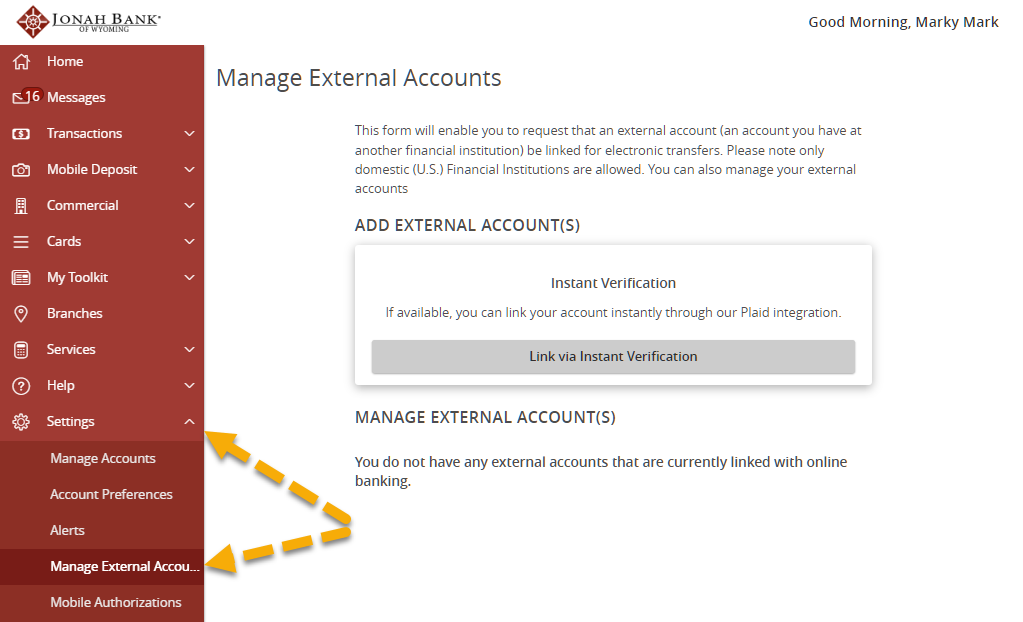
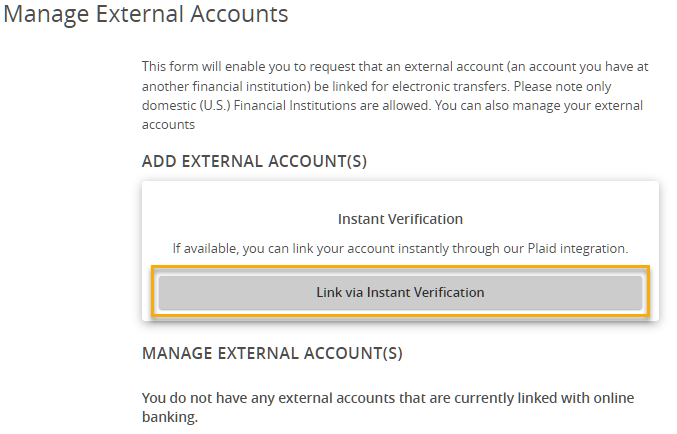
2) Select Link via Instant Verification
Choose the option to link your account using Instant Verification.
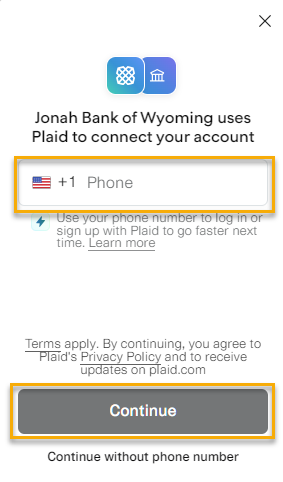
3) Read the Plaid pop-up, enter your cell phone number, and select Continue
A pop-up explains the linking experience uses Plaid. Enter your cell phone number and then select Continue to proceed.
Note: You may be prompted to confirm a security code the first time you use this feature.
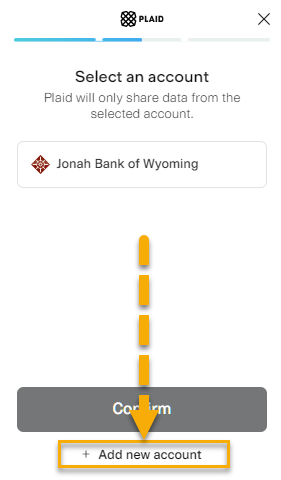
4) Select + add new account
You may see your Jonah Bank account listed. Because you’re linking an external account, select + Add new account at the bottom.
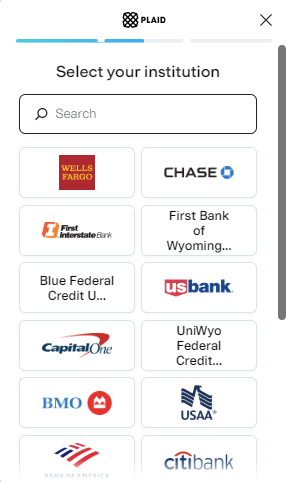
5) Find your external financial institution
Select your external institution from the list or search for it.
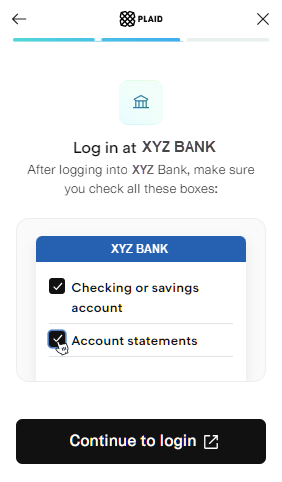
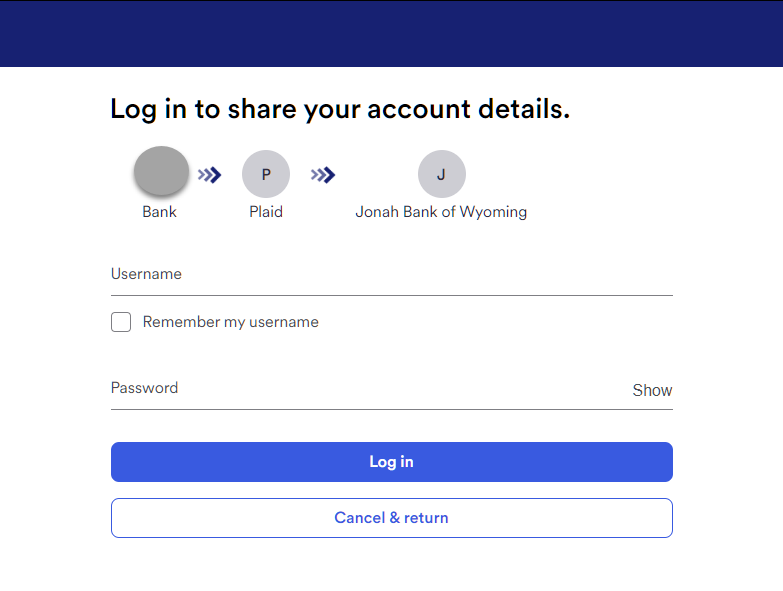
6) Sign in at your other bank (MFA may be required)
Enter your login information for the external institution. Depending on the institution, you may complete multi-factor authentication (MFA) steps (text, email, authenticator, security questions, etc.).
7) Review terms and authorize the connection
You’ll be shown the external institution’s (and/or Plaid’s) terms and asked to authorize the connection so the account can be linked.
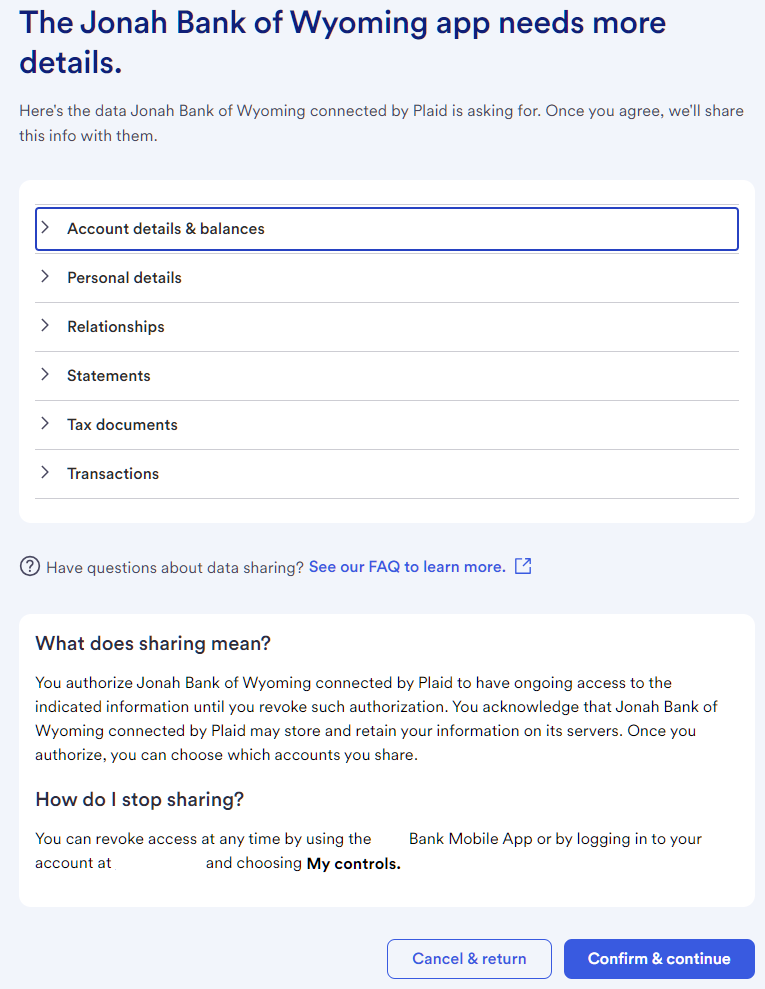
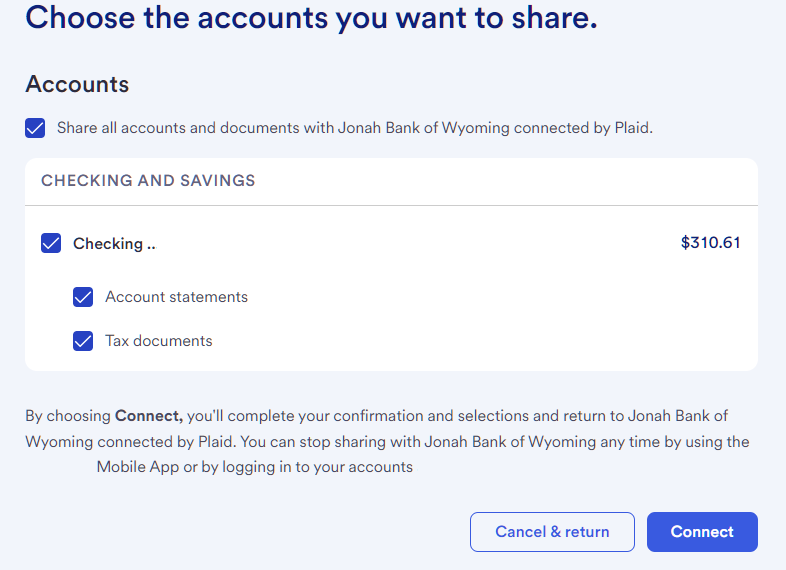
8) Select the account(s) you want to link
Choose which checking(s)/savings account(s) you want available as funding source(s) to transfer into Jonah Bank.
9) Confirm with a Jonah Bank secure access code
To complete linking, you’ll receive a secure access code from Jonah Bank. Enter and confirm it to finish setup.
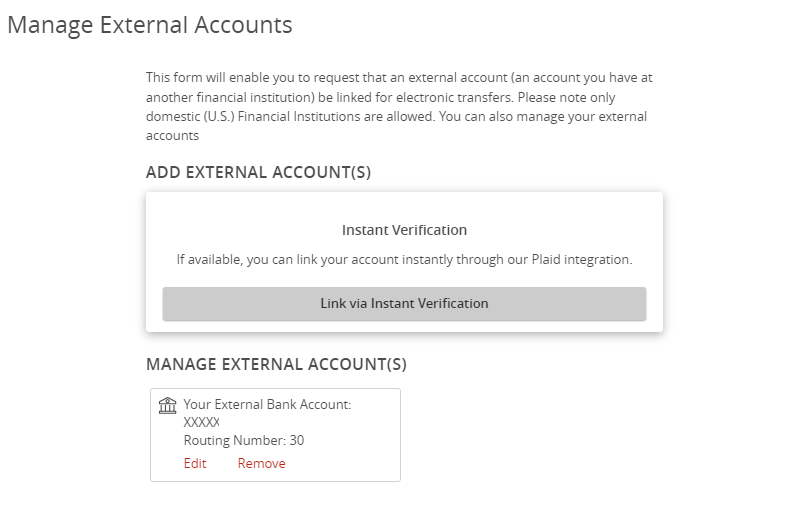
10) Successful External Account Linking Page
With your external account successfully linked, you will be able to view it on the Manage External Accounts page.
After Linking: Transfer Funds into Jonah Bank
Once your external account is added, you can bring money into Jonah Bank from the Transfers menu.
Online & Mobile Banking:
-
- Open Transfers from the main menu.
- In From account, choose your external account.
- In To account, choose your Jonah Bank account.
- Enter the amount and date, then submit.
FAQs
Do the names on both accounts have to match?
Yes—your primary name on your Jonah Bank account must match the primary name on the external institution account. If the names don’t match (or the external account is not owned by you), linking may fail or transfers may be declined.
Can I transfer money from Jonah Bank to another institution?
Not at this time. External Accounts currently supports transfers into Jonah Bank only.
How long does it take for funds to be available?
Please allow up to 48 hours for funds to be available in your Jonah Bank account after submitting a transfer. Timing may vary due to processing windows, weekends/holidays, and verification requirements.
Why do I have to enter a phone number and one-time code?
The phone verification step helps confirm your identity and protect your account during the linking process.
My other bank is asking for MFA (text/email/security questions). Is that normal?
Yes. Many institutions require multi-factor authentication (MFA) during sign-in. Those prompts are controlled by your external institution, and you’ll need to complete them to finish linking.
What if I don’t see my financial institution in the list?
Try searching with a shorter name (for example, omit “credit union” or “NA”). If your institution still doesn’t appear, it may not be available for instant linking. Please contact Jonah Bank for assistance.
I linked the wrong account—can I remove it?
Yes. Go to Settings → External Accounts, select the linked account, and choose remove/unlink (wording may vary).
Troubleshooting: The link fails or won’t complete—what should I try?
Try these quick fixes:
- Confirm you can log in to the external bank directly (no password reset or alerts pending).
- Complete any MFA prompts from the external bank.
- Try again on a stable Wi‑Fi or cellular connection.
- Close and reopen the app/browser (or try a different browser).
- If one-time codes aren’t arriving, verify your contact details at the external institution.
``